How to Set Up WhatsApp Web
Getting WhatsApp Web up and running is quicker than you might expect. By mirroring your WhatsApp account from your phone to your computer, you can chat on a bigger screen and type longer messages much more comfortably with a keyboard.
Here’s a simple step-by-step setup guide. When you use WhatsApp Web in your computer’s browser, it stays in sync with your mobile device. That means incoming messages show up instantly on your computer, and any photos you send are saved on both devices.
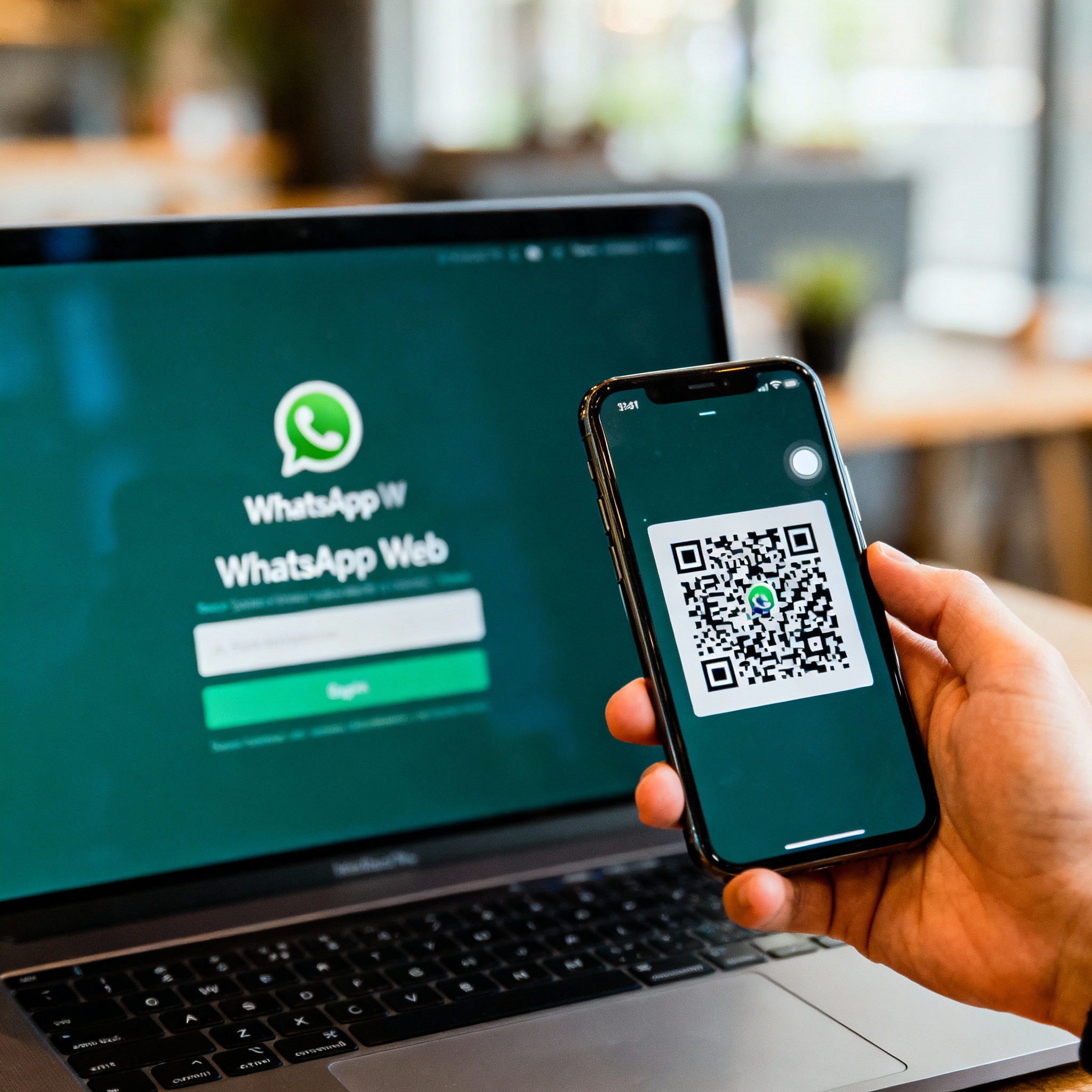
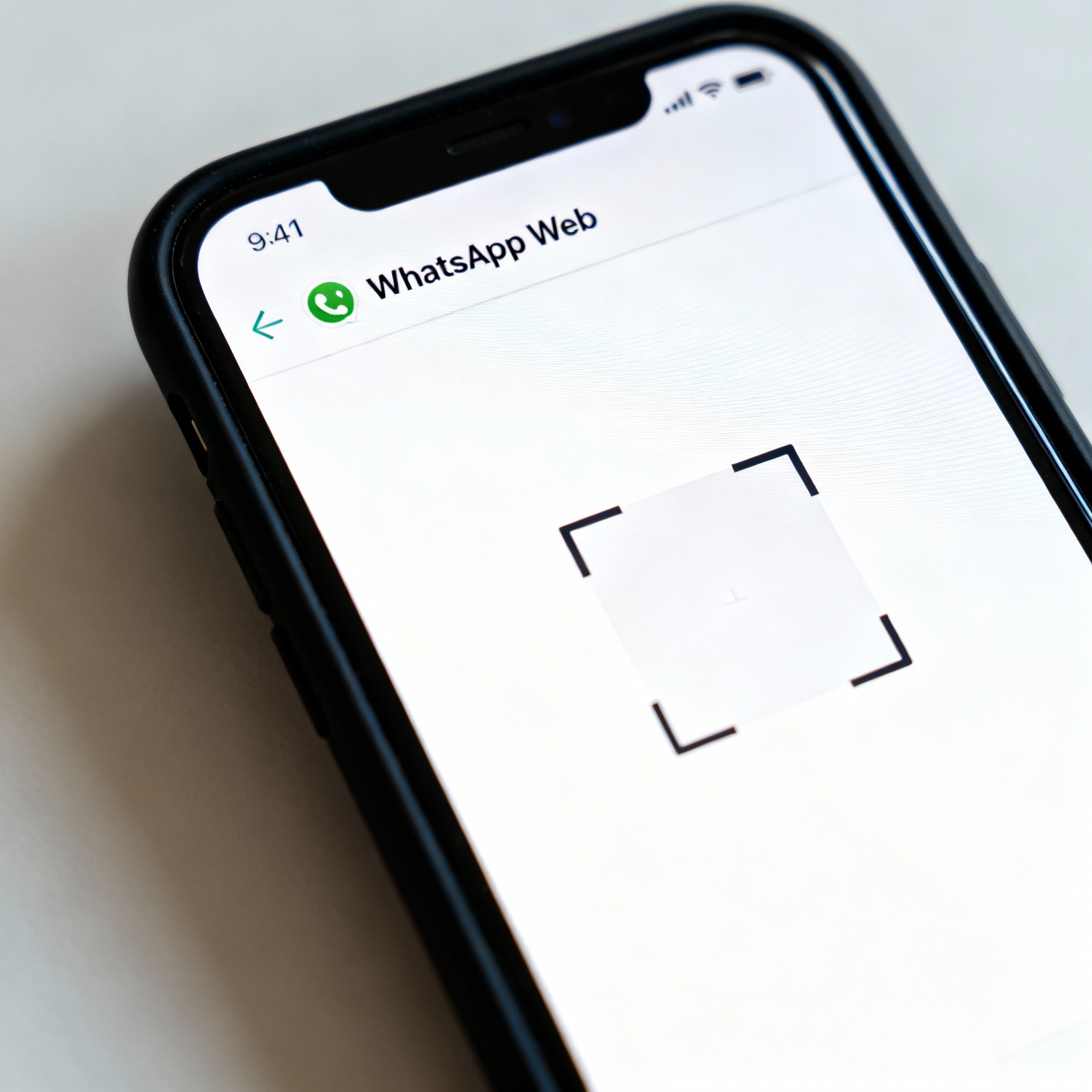
First, open any browser on your computer—Chrome, Firefox, Safari, it doesn’t matter—and type "web.whatsapp.com" into the address bar. A QR code will appear. Next, pick up your phone, open WhatsApp, and look for the "WhatsApp Web" option in the menu. It’s usually tucked under the three-dot icon in the top right corner.
When you tap it, your camera will open automatically. Point your phone at the computer screen and scan the QR code. Within a few seconds, your WhatsApp account will be active on your computer. If you run into any small hiccups along the way, they’re usually caused by one of these three things:
- Make sure your computer is connected to the internet.
- Your phone must also be connected to the internet.
- Make sure your camera lens is clean when scanning the QR code.
Here are a few ways to use WhatsApp Web more efficiently:
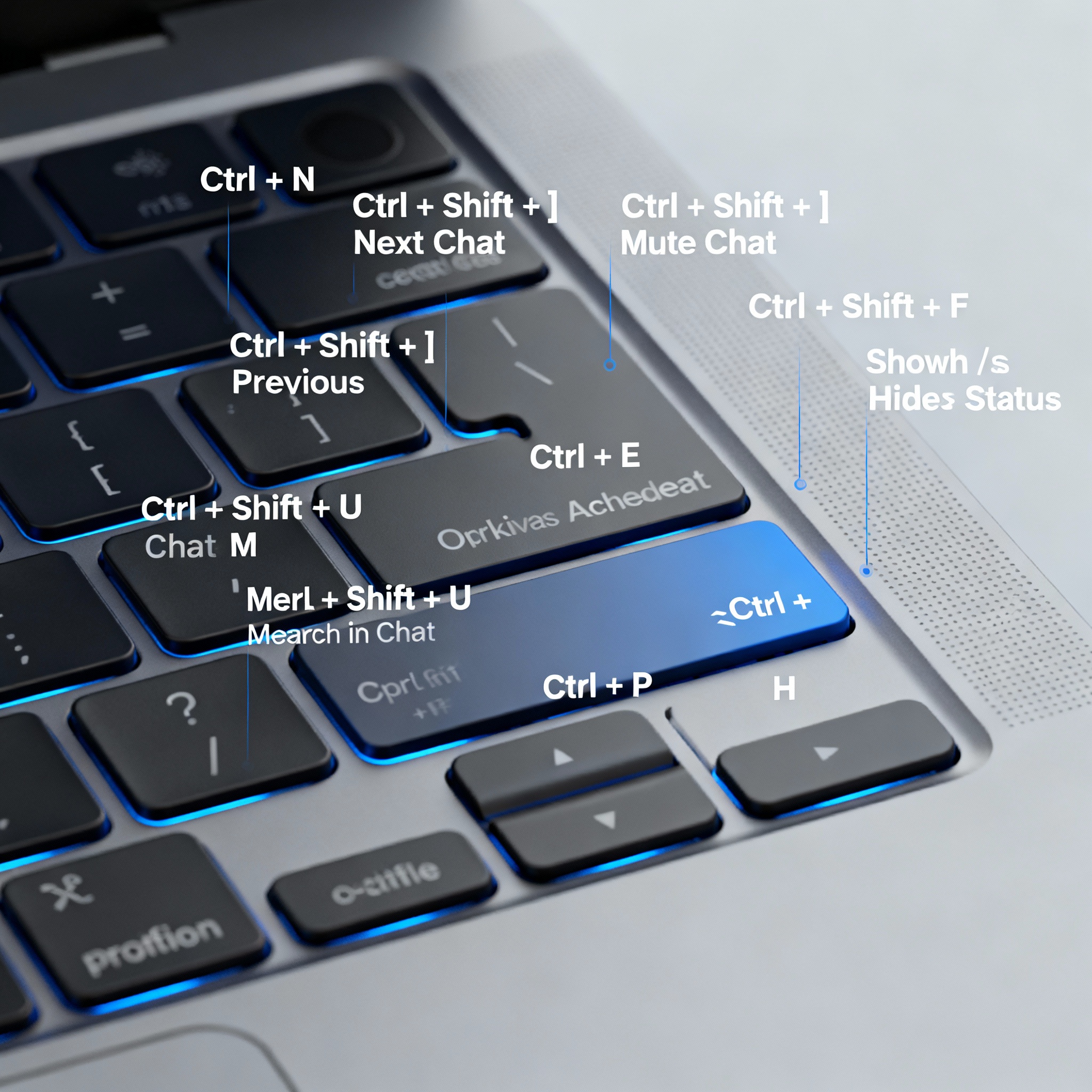
Master the keyboard shortcuts!
You can start a new chat with Ctrl+N (Cmd+N on Mac) or mute a group with Ctrl+Shift+M. If you send dozens of messages a day, these shortcuts can save you a lot of time.
Don’t forget to enable notification permissions in your browser; otherwise, you might miss incoming messages while another tab is open on your desktop. And if privacy matters—especially on a work or shared computer—make sure to click "Log Out" from the menu when you’re done. Leaving your account signed in means anyone using that computer could access your messages.
If you want to streamline your business processes with WhatsApp, check out our guide on How to Set Up Sales Automation with WhatsApp? To automate customer communication, the How to Integrate a WhatsApp Chatbot? guide will be especially useful.